I have built a Retrieval Augmented Generation (RAG) solution using the Azure AI Search SDK and Azure OpenAI SDK. There is a lot to know about not only coding, configuring, and managing those components, but how they must be tuned, fed, and optimized are aspects which we are still in a state of learning and serious innovation, at the time of writing this post. That was before AI Agents. There are 3 points which are important to call out here, for starters.
- Foundry IQ – Instead of coding a custom coded application to make connections to Azure AI Search, Azure OpenAI, and potentially many other backend systems which store your data, Foundry IQ is an tool on Azure that provides those features without code. Foundry IQ and AI Agents are the glue between the LLM and you knowledge resources.
- Garbage in, garbage out – If your knowledge documentation is poorly written, structured, and stale, your experience with a RAG will also be poor.
- LLMs are not trained on internal data – you need a RAG because LLMs are not trained on your data. You need to utilize the users prompt to retrieve your internal documentation, pass it to the LLM as the grounding basis for the NLP.
Before I begin the technical / configuration parts of this article I wanted to call out that before AI Agents it was required to intercept the user prompt in the bot, convert that prompt into a search query, execute the search query, parse the result, parse the result into the user prompt, and only then send it to the LLM for NLP. No longer required with Foundry IQ.
In this post you will gain some insights into how to utilize Foundry IQ, an AI Agent, LLM, and documents to implement a RAG solution.
- Connect Azure Foundry IQ to a Knowledge source
- Utilize the AI Agent from an app
Connect Azure Foundry IQ to a Knowledge source
There are some administrative understandings one must have in order to do this. There are cost, authentication, and geographical considerations required to make the basic considerations. Those won’t be covered here as there is some expectation of Azure experience.
The first action you need to perform is the provisioning of a product to store your knowledge documentation. I show an Azure blob storage account and container. It is simple and cheap. As seen in Figure 1, there exists 3 documents that contain the policies for how the management of tokens is to be handled.
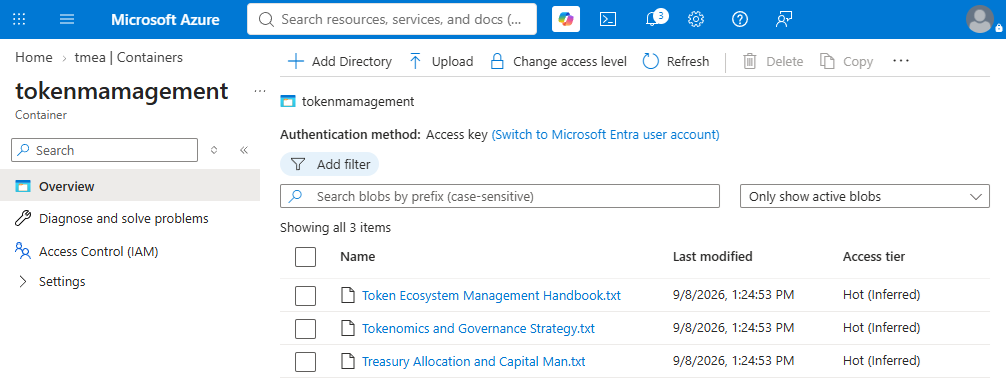
Figure 1, Azure Storage for RAG knowledge source storage
Then in Microsoft Foundry, you must first create the Knowledge connector which is where you choose your compute, because the indexing requires it (and text-embedding-3-large) and the location in which it will be located. I chose a region that included Serverless which is the most cost effective for this context. Once the connector is provisioned you then configure the knowledge base, as shown in Figure 2.
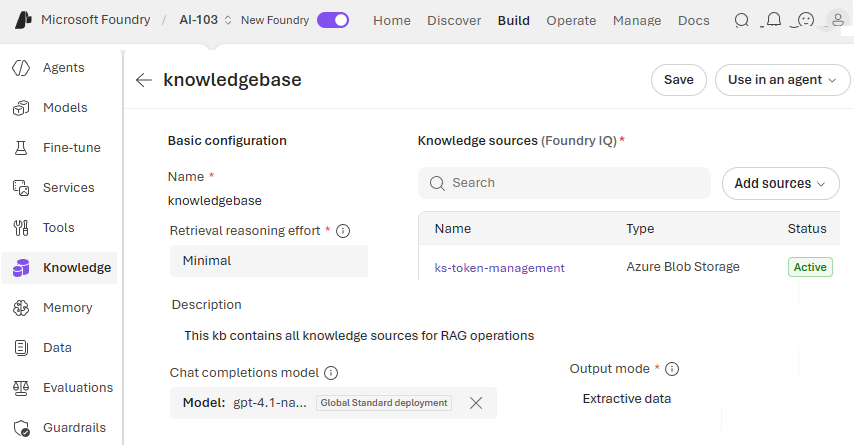
Figure 2, Microsoft Foundry IQ Knowledge Source for RAG
This knowledge base configuration is where you link the connector to the location where your documentation is stored. Once connected the knowledge in that data store is indexed.
NOTE: Authentication is a place that always used to get me stuck. Recognize that when you create the Knowledge Connection and Azure AI Search product is provisioned as well. I received the 2 errors found at the bottom of this article. The first one required that the Microsoft Foundry project, in this case “AI-103” needed RBAC permission on Azure AI Search: Search Service Contributor and Search Index Data Reader. The second error happened after I granted those permissions, but went away after I closed down my browser and logged in again.
At this point you can test out the AI Agent and the connection to the knowledge base using a RAG, as shown in Figure 3.
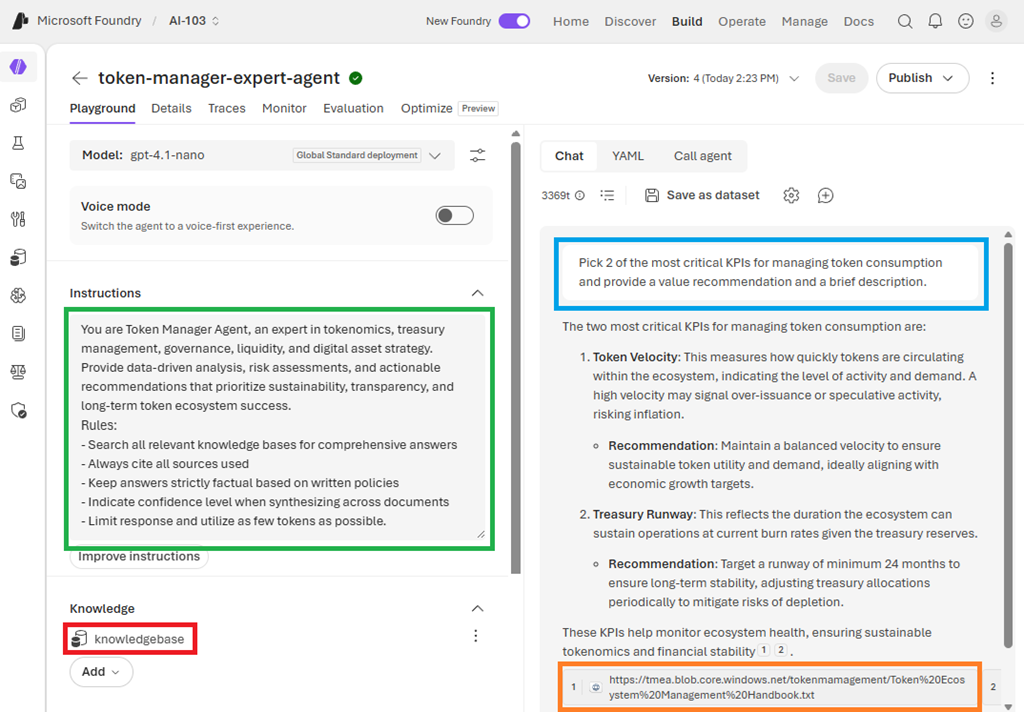
Figure 3, using Microsoft Foundry IQ RAG
Notice the content in the green box which is the system prompt that provides instructions to the AI Agent for managing processing. The content in the blue box is requesting content that does exist in the documentation uploaded to the knowledge base, aka the Azure Storage container, you can also see a citation to the grounding document in the orange box. Lastly, the moniker for the knowledge base (not the knowledge source) that contains the knowledge source.
Utilize the AI Agent from an app
When you get your AI Agent configured, knowledge base, and RAG solution functional in the Azure portal, the next logical step is to publish it to the user community so that they can benefit from it. There are numerous ways to make this happen, for this example, it will be consumed from a python application.
Before I start that I wanted to share a quick snippet about Human In The Loop (HITL) features that are available in this context. It goes without writing that we need to safeguard our resources so that we are certain not only AI Agents are eligible to perform actions, but the humans utilizing those agents. One such way of achieving this is by adding the require_approvals parameter to each tool hosted on an MCP server. I illustrated this in Listing 2, line 4 in this article: Integrate MCP Tools with AI Agents – Remote MCP server. When you are testing the agent in the Azure Playground, being the administrator managing the access is not as important as when it is to be deployed out to end users. To set the require_approvals value in Visual Studio Code, see Figure 4. Using the Foundry Toolkit extension, open your project –> select Agents –> select your agent –> in the TOOL section –> select the … next to your Knowledge Base –> Configure –> set the required approval setting based on business requirements.
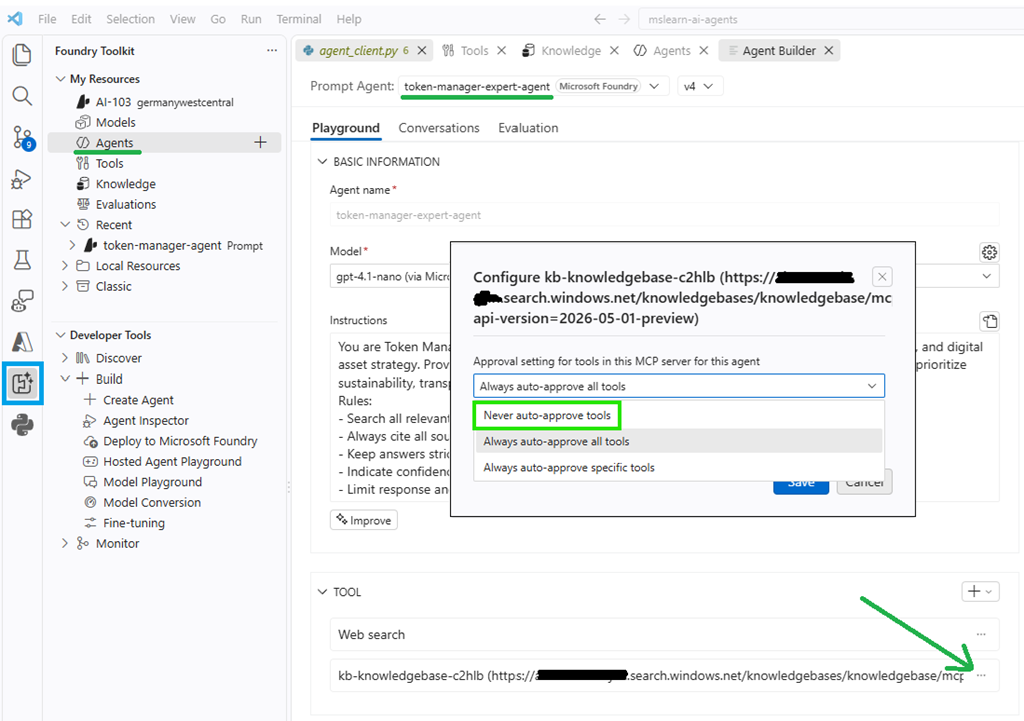
Figure 4, require obtain approval for utilizing the Foundry IQ knowledge base
To validate this you need to parse the response and search for mcp_approval_request which also includes the name of the tool needing approval. The application can perform any kind of validation necessary based on the tool and return approvals in the mcp_approval_response back to the AI Agent. This short snippet explains partially how to achieve this.
approval_requests = [
  item for item in (getattr(response, "output", None) or [])
  if getattr(item, "type", None) == "mcp_approval_request"
]
...
approved = approval_input in ["yes", "y"]
...
approval_items.append({
  "type": "mcp_approval_response",
  "approval_request_id": approval_request.id,
  "approve": approved
})
...
openai_client.conversations.items.create(
  conversation_id=conversation.id,
  items=approval_items
)
Listing 1, checking for HITL approvals for executing tools on Foundry IQ
The requirement to have multiple engagements with the AI Agent to perform a single operation is now becoming obvious. No more is it a one shot activity as before when this solution was performed directly with the LLM and no AI Agent.
In these 3 posts I cover how to create the Azure OpenAI client, call the endpoint, and process the the output.
- Integrate custom tools into an AI Agent
- Integrate MCP Tools with AI Agents – Remote MCP server
- Integrate MCP Tools with AI Agents – Local MCP server
So there is no reason to add it again here on this post. To show however how the result is in the Python application, it is shown in Figure 5. The system prompt and user prompt are the same as is the output similar.
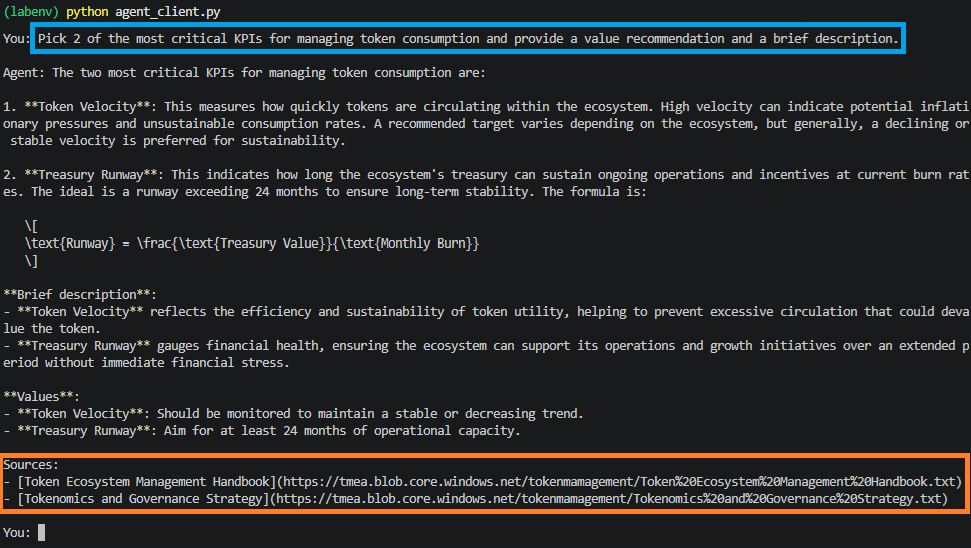
Figure 5, result of python application calling and managing RAG with Foundry IQ
A call like this can be integrated into a web application or a tool and rendered into more friendly format.
Error 1
ErrorAccess denied when connecting to the MCP server at **** while
enumerating tools (HTTP 403 Forbidden). Please verify: (1) the
configured credential, connection, or selected identity has the
downstream permission, RBAC role, workspace or resource access,
or access policy required by this server, (2) if the endpoint is
behind private networking or IP allowlists, requests from the
selected network path are permitted, and (3) the server's access
control configuration allows this operation for the configured
authentication mode. Troubleshooting guide:
https://learn.microsoft.com/en-us/azure/foundry/agents/how-to/
foundry-iq-connect?tabs=foundry%2Cpython#troubleshooting
Error 2
ErrorError encountered while enumerating tools from remote
server: ****. Details: Response status code does not indicate
success: 406 (NotAcceptable). Response: {"error":
{"code":-32000,"message":"Not Acceptable: Client must accept
both application/json and text/event-stream"},"id":"",
"jsonrpc":"2.0"}. Troubleshooting guide:
https://learn.microsoft.com/en-us/azure/foundry/agents/how-to/
foundry-iq-connect?tabs=foundry%2Cpython#troubleshooting